
Start with the Bitget market you want to follow
A ready-made Bitget USDT watchlist gives you a file of symbols to import into TradingView. In TradingList, the workflow is to choose Bitget, select the USDT spot or perpetual list, download the TXT through a one-off purchase or your subscription, then import and check it in TradingView. The preparation is already done: you choose an organised market universe instead of assembling and formatting the file yourself.
Check your TradingView plan before buying a file. As checked on 20 September 2026, Basic does not include watchlist import/export; Essential and the higher plans do. Buying a TradingList file does not unlock TradingView features. Check the current TradingView plan comparison if you are unsure about your account.
Open the TradingList centralized exchange catalogue and choose Bitget. A centralized exchange is often shortened to CEX. You can browse this catalogue without signing in; getting a file requires a purchase or the relevant subscription access.
| What you want to follow | Bitget list to choose |
|---|---|
| Spot pairs quoted in USDT | All USDT |
| USDT perpetual futures contracts | All USDT Perp |
“Perp” means perpetual futures. The spot and perpetual lists represent different instruments, even when both use the same underlying asset and USDT. If you want both, keep them in separate watchlists so you can see which market you are reviewing. All USDC is a different quote-currency list; it is not the USDT list.
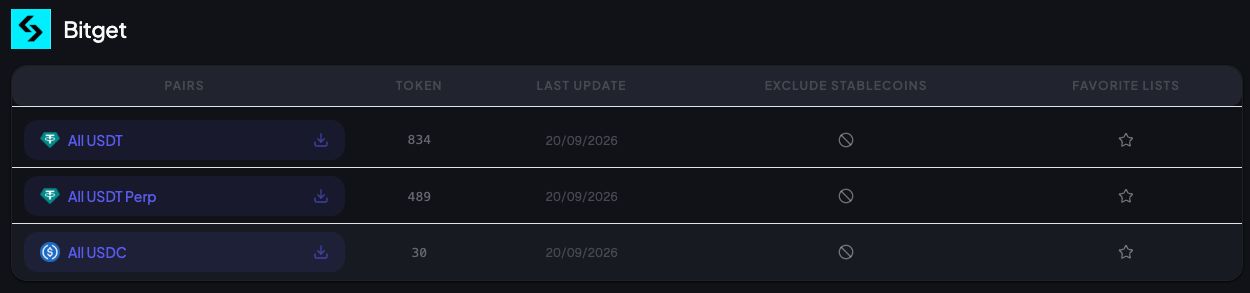
The Bitget catalogue separates USDT spot and perpetual watchlists. This signed-in view was captured on 20 September 2026; counts and available controls can change with the catalogue and your access.
The exchange matters too. For example, TradingView identifies Bitget’s BTC/USDT spot market with BITGET:BTCUSDT. A similarly named pair from another exchange is a different chart. The prepared file includes the exchange prefixes needed to identify its symbols.
Choose a one-off file or recurring access
The choice depends on how you prepare your watchlists, rather than how many charts you plan to open today.
- For a specific file now: a one-off purchase lets you get a standard Bitget list without a subscription or account. The guest checkout uses your email address. The download is provided on the confirmation page, with an email link for recovery. Save the file locally; that recovery link is temporary. A one-off purchase is a file purchase, not an ongoing update subscription.
- For regular list preparation: Lite includes unlimited access to standard CEX watchlists. This can suit someone who refreshes their Bitget list regularly or prepares lists for several exchanges. If you already subscribe, sign in before downloading so you use your included access.
Lite does not include standard favourites or update alerts. Those are included in Plus and Premium, if saving lists for follow-up matters to your workflow. The TradingList offer details let you check those distinctions before choosing; you do not need the higher plans simply to access a standard Bitget CEX list.
For just a few symbols you already know, adding them directly in TradingView may be enough. The reason to choose a prepared file is to obtain the selected market list without putting that file together yourself—not to gain access to exclusive symbols or different price data.
Import the TXT into TradingView
Use the web interface on a computer for these steps:
- Download the file for the Bitget list you selected. If your delivery is a ZIP containing several files, extract it first.
- In TradingView, open the watchlist panel in the right-hand toolbar.
- Click the watchlist’s name to open its menu, then choose Upload list….
- Select the downloaded .txt file and check the imported watchlist.
These steps follow TradingView’s official import instructions. TradingView expects exchange-prefixed symbols separated by commas in a TXT file; the TradingList delivery uses that format, so you do not need to rebuild it in a spreadsheet.
The plan comparison currently lists 1,000 symbols per watchlist for Essential and higher plans. TradingList splits a list that exceeds 1,000 exportable symbols into separate TXT parts. Import the parts into separate watchlists rather than combining them beyond your account’s capacity. Splitting a file does not bypass TradingView’s plan requirements.
Check the imported list and keep updates clear
Before relying on the result, check:
- Exchange: the symbols belong to Bitget.
- Quote currency: you selected USDT rather than USDC or another quote currency.
- Market type: the charts are spot or perpetual futures, matching your chosen file.
- Import result: review the number of symbols actually added and any import messages. Open one or two charts to confirm their identities.
If a symbol is missing, check whether that exact Bitget instrument is available on TradingView. A TXT file cannot create a market data feed that TradingView does not provide, and a prepared list should not be read as a guarantee that every Bitget listing is available there.
An imported watchlist is a version of the file at the time you imported it. Updates to TradingList’s source lists do not automatically change a watchlist already imported into TradingView. To refresh it, obtain a newer file available under your purchase or subscription terms, import it, and check the result again. Update alerts, where included, are notifications—not automatic synchronisation.
Once you have checked your TradingView import access, find Bitget in the TradingList catalogue and choose the USDT spot or perpetual list that matches the charts you want to follow.